
Grid view
Some resources are best displayed in a grid view. We can do that with Avo using a cover_url, a title, and a body.
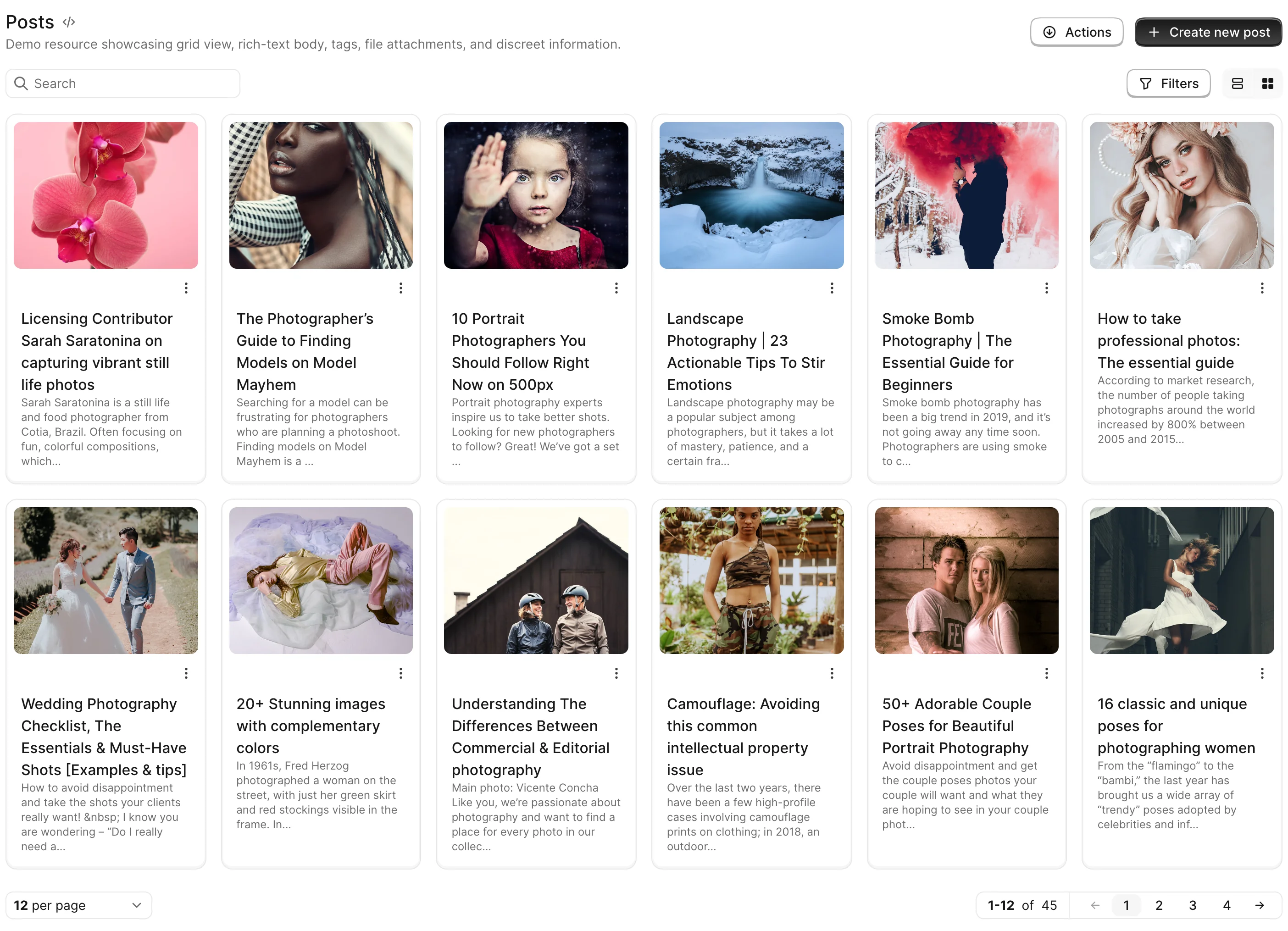
Enable grid view
To enable grid view for a resource, you need to configure the grid_view class attribute on the resource. That will add the grid view to the view switcher on the Index view.
class Avo::Resources::Post < Avo::BaseResource
  self.grid_view = {
    card: -> do
      {
        cover_url:
          if record.cover_photo.attached?
            main_app.url_for(record.cover_photo.url)
          end,
        title: record.name,
        body: record.truncated_body
      }
    end
  }
end
The card block runs once per record through Avo::ExecutionContext, with access to record, resource, and the standard defaults (current_user, params, view helpers).
Options
Next, you should configure a few things for the grid card.
-> title
What should be used as the title of the card.
self.grid_view = {
  card: -> do
    {
      title: record.title
    }
  end
}- Type: String
-> body
What should be used as the body of the card. You can use this field to display a description of the record.
self.grid_view = {
  card: -> do
    {
      body: record.truncated_body
    }
  end
}- Type: String (HTML-safe strings are rendered as HTML)
-> cover_url
What should be used as the cover URL of the card.
self.grid_view = {
  card: -> do
    {
      cover_url: record.image.attached? ? main_app.url_for(record.image.variant(resize_to_fill: [300, 300])) : nil
    }
  end
}- Type: String
- Default:
nil— a default placeholder image is used
-> badge
Optionally you may add a badge to give more context to the card or make it stand out.
See below a list of options you can configure for the badge.
Make grid the default view
To make the grid the default way of viewing a resource Index, we have to use the default_view_type class attribute.
class Avo::Resources::Post < Avo::BaseResource
  self.default_view_type = :grid
end
To change the default for all resources, set config.default_view_type = :grid in config/initializers/avo.rb. Both the global and per-resource settings accept a block, evaluated through Avo::ExecutionContext, if the choice depends on the request.
Custom style
You may want to customize the card a little bit. That's possible using the html option.
class Avo::Resources::Post < Avo::BaseResource
  self.grid_view = {
    card: -> do
      {
        cover_url:
          if record.cover_photo.attached?
            main_app.url_for(record.cover_photo.url)
          end,
        title: record.name,
        body: record.truncated_body
      }
    end,
    html: -> do
      {
        title: {
          index: {
            wrapper: {
              classes: "bg-blue-50 dark:bg-blue-900 rounded-md p-2"
            }
          }
        },
        body: {
          index: {
            wrapper: {
              classes: "bg-gray-50 dark:bg-gray-800 rounded-md p-1"
            }
          }
        },
        cover: {
          index: {
            wrapper: {
              classes: "blur-sm"
            }
          }
        }
      }
    end
  }
end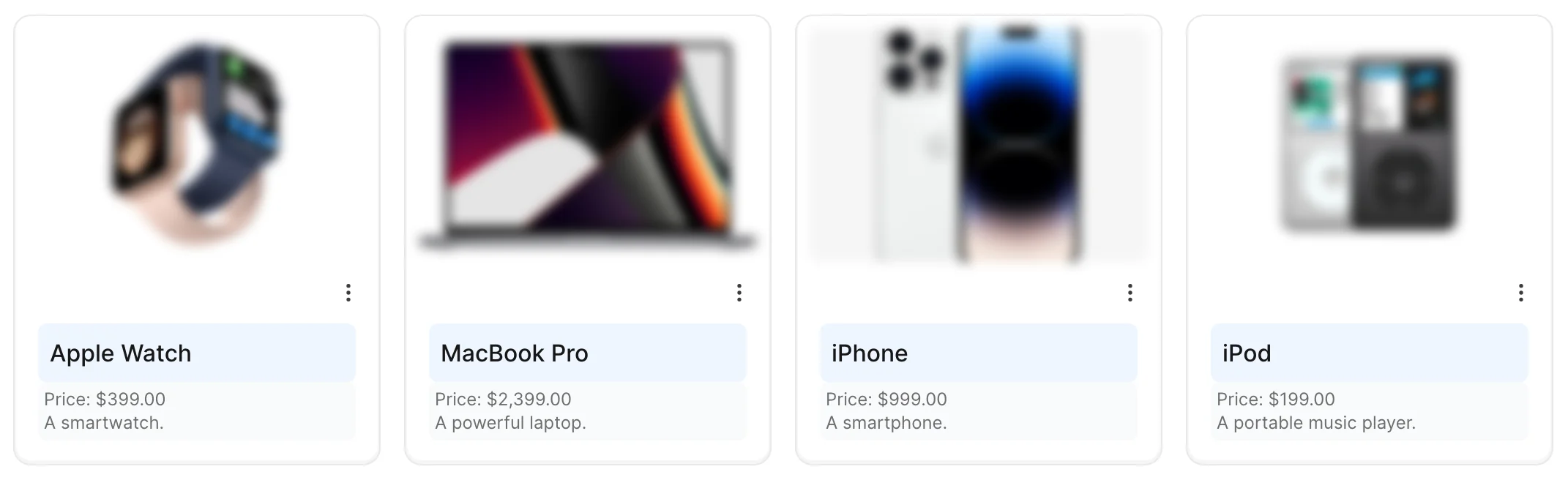
Grid Item Badge
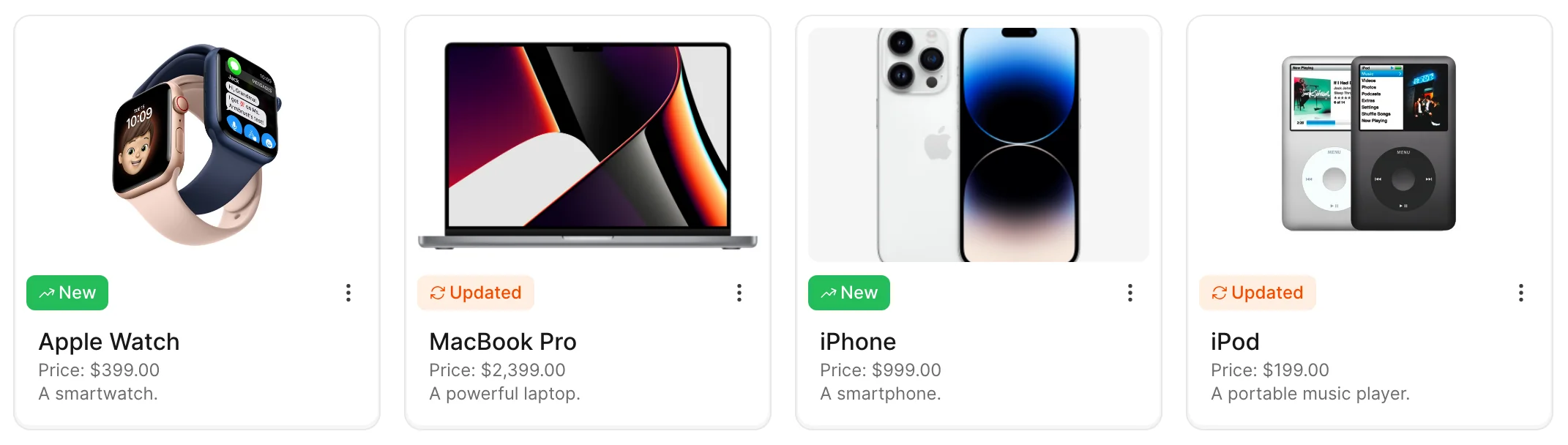
You can display and customize a badge on top of your grid items. Badges are useful for showing status indicators, labels, or other visual cues that help users quickly identify important information about each item.
Complete Example
# Dynamic badge based on record status
self.grid_view = {
  card: -> do
    {
      cover_url: record.image.attached? ? main_app.url_for(record.image.variant(resize_to_fill: [300, 300])) : nil,
      title: record.title,
      body: simple_format(record.description),
      badge: {
        label: record.new? ? "New" : "Updated",
        color: record.new? ? "green" : "orange",
        style: record.new? ? "solid" : "subtle",
        title: record.new? ? "New product available" : "Recently updated",
        icon: record.new? ? "heroicons/outline/arrow-trending-up" : "heroicons/outline/arrow-path"
      }
    }
  end
}
Options
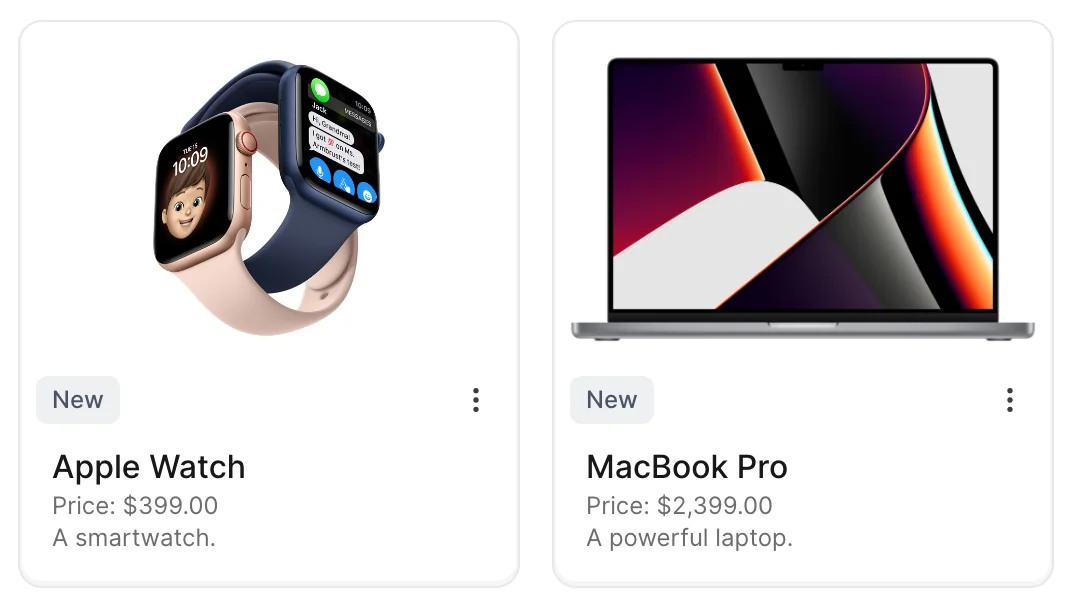
-> badge.label
The visible text displayed on the badge. This is the primary content that users will see on your grid items.
self.grid_view = {
  card: -> do
    {
      badge: { label: "New" }
    }
  end
}
- Type: String
-> badge.color
Sets the badge color.
self.grid_view = {
  card: -> do
    {
      badge: {
        label: "New",
        color: "green"
      }
    }
  end
}
Type: String or Symbol
Default:
neutralValues:
Base colors:
red,orange,amber,yellow,lime,green,emerald,teal,cyan,sky,blue,indigo,violet,purple,fuchsia,pink,roseSemantic colors:
neutral,success,danger,warning,infoUnknown values silently fall back to
neutral.
-> badge.style
Controls the badge appearance style.
self.grid_view = {
  card: -> do
    {
      badge: {
        label: "New",
        color: "green",
        style: "solid"
      }
    }
  end
}- Type: String or Symbol
- Default:
subtle - Values:
| Value | Behavior |
|---|---|
subtle | Light background with colored text |
solid | Solid colored background with white text |
Unknown values silently fall back to subtle.
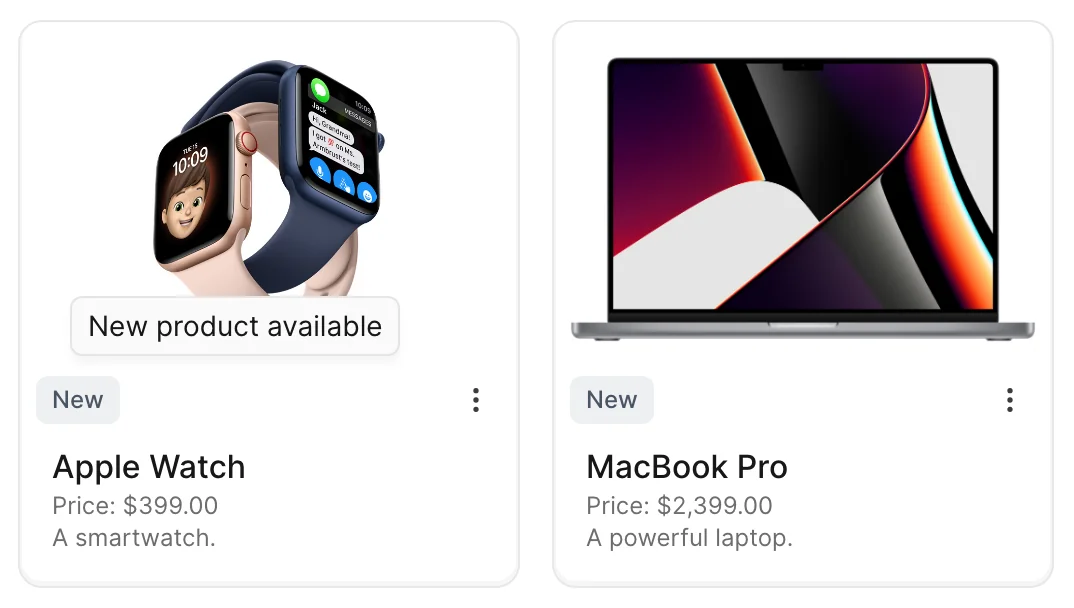
-> badge.title
The tooltip text that appears when users hover over the badge. Useful for providing additional context or detailed information.
self.grid_view = {
  card: -> do
    {
      badge: {
        label: "New",
        title: "New product available"
      }
    }
  end
}
- Type: String
- Default:
nil— no tooltip
-> badge.icon
Adds an icon to the badge.
self.grid_view = {
  card: -> do
    {
      badge: {
        label: "New",
        color: "green",
        icon: "tabler/outline/trending-up"
      }
    }
  end
}- Type: String — an icon path like
"tabler/outline/trending-up"or"heroicons/outline/arrow-path" - Default:
nil— no icon