
Menu editor
One common task you need to do is organize your sidebar resources into menus. You can easily do that using the menu editor in the initializer.
When you start with Avo, you'll get an auto-generated sidebar by default. That sidebar will contain all your resources, dashboards, and custom tools. To customize it, add the main_menu key to your initializer.
# config/initializers/avo.rb
Avo.configure do |config|
  config.main_menu = -> {
    section "Resources", icon: "tabler/outline/building-store", collapsable: false do
      group "Company", collapsable: true do
        resource :projects do
          link_to "First project", path: "/admin/resources/projects/1"
          link_to "Second project", path: "/admin/resources/projects/2"
        end
        resource :team, icon: "heroicons/outline/user-group"
        resource :team_membership
        resource :reviews, icon: "heroicons/outline/star"
      end
    end

    section I18n.t('avo.other'), icon: "heroicons/outline/finger-print", collapsable: true, collapsed: true do
      link_to 'Avo HQ', path: 'https://avohq.io', target: :_blank
      link_to 'Jumpstart Rails', path: 'https://jumpstartrails.com/', target: :_blank
    end
  }
end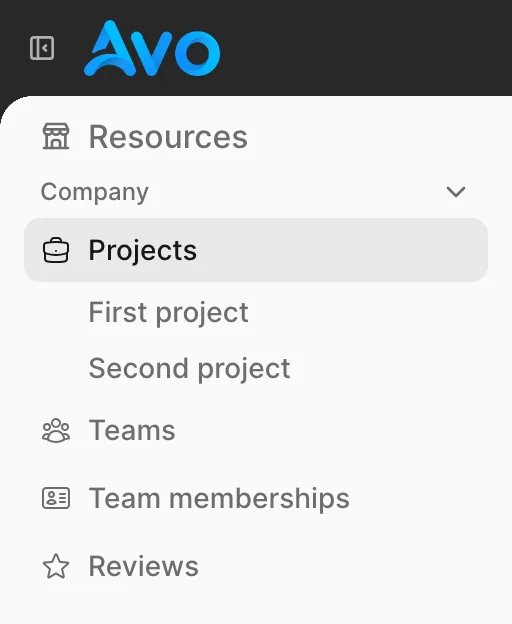
Avo has three configurable menus, all built with the same DSL: main_menu (the sidebar), profile_menu, and header_menu. The rest of this page uses main_menu in its examples; the profile and header menus are covered at the end.
Menu item types
The recommended hierarchy is section → group → item. Sections are the top-level containers rendered with an icon header; groups are collapsable sub-categories inside them.
The items themselves:
link_to(aliaslink) links to any path, internal or external.resourcelinks to a resource's Index view — pass a symbol (:users) or the full class name ("Avo::Resources::User").dashboardlinks to a dashboard byidorname.pageandformlink to your pages and forms (requires theavo-formsadd-on).boardlinks to a kanban board (requires theavo-kanbanadd-on).actiontriggers a standalone action straight from the menu.renderrenders a partial or View Component for anything custom.
If you want to change an item's label, pass label: — resource :posts, label: "News posts" works the same on dashboard, page, form, and action items.
Add everything at once
Instead of listing items one by one, the all_* helpers pull in a whole category: all_resources, all_dashboards, all_pages, all_forms, all_boards, and all_tools. Most accept an except: array to leave specific entries out.
# config/initializers/avo.rb
Avo.configure do |config|
  config.main_menu = -> {
    section "App", icon: "heroicons/outline/beaker" do
      group "Dashboards" do
        all_dashboards
      end

      group "Resources" do
        all_resources except: [:users, :orders]
      end

      group "All tools" do
        all_tools
      end
    end
  }
end
WARNING
The all_resources helper takes your authorization rules into account, so make sure you have def index? enabled in your resource policy.
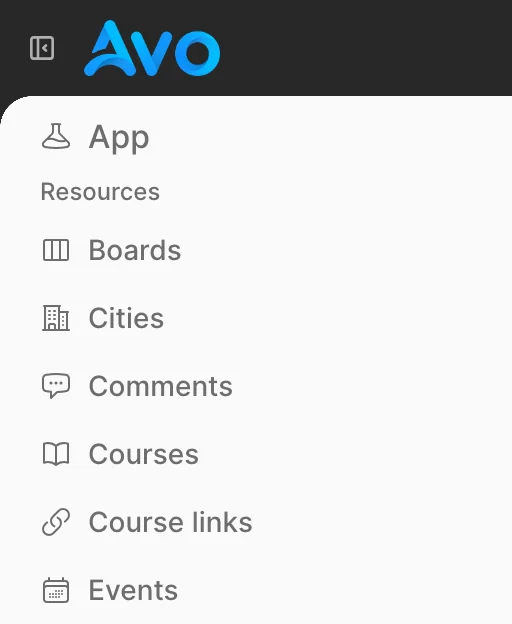
Sub-items
You can nest items beneath a resource by passing a block. They appear as child items under the resource link in the sidebar. Any item type can be nested; a nested resource, dashboard, page, board, or action resolves its own URL automatically, so only link_to needs an explicit path:. A nested action also inherits its enclosing resource, so you don't repeat it.
# config/initializers/avo.rb
Avo.configure do |config|
  config.main_menu = -> {
    resource :projects do
      link_to "First project", path: "/admin/resources/projects/1"
      resource :tasks                 # nested resource
      dashboard :sales                # nested dashboard
      page "Avo::Pages::Settings"     # nested page
      board 1                         # nested kanban board
      action Avo::Actions::ExportData # nested action (inherits :projects)
    end
  }
end
Avo highlights the active sub-item automatically by matching the current path, favoring the most specific match. Sub-items don't render an icon. For readability you can optionally wrap them in a subitems block — it behaves identically to listing them directly.
Trigger actions from the menu
An action item opens the action's modal, just like the per-resource Actions dropdown. Because the menu has no selected record, only standalone actions (self.standalone = true) can be added — others are skipped with a log warning.
# app/avo/actions/export_data.rb
class Avo::Actions::ExportData < Avo::BaseAction
  self.name = "Export data" # used as the menu label unless you override it
  self.standalone = true # required to add it to the menu

  def handle(fields:, **)
    # ...generate and return the export
  end
end
An action always lives under a resource's URL, so you must tell it which one. At the top level resource: is required; nested inside a resource block it is inherited (an explicit resource: still overrides it).
# config/initializers/avo.rb
Avo.configure do |config|
  config.main_menu = -> {
    # Top level — resource: required
    action Avo::Actions::ExportData, resource: :projects, label: "Export", icon: "tabler/outline/download"

    # Nested — inherits :projects automatically
    resource :projects do
      action Avo::Actions::ExportData
    end
  }
end
Item visibility
The visible option is available on all menu items. It can be a boolean or a block that has access to a few things:
- the
current_user. Given that you set a way for Avo to know who the current user is, that will be available in that block call - the
contextobject. - the
paramsobject of that current request - the
view_contextobject. Theview_contextobject lets you use the route helpers. eg:view_context.main_app.posts_path.
# config/initializers/avo.rb
Avo.configure do |config|
  config.main_menu = -> {
    resource :user, visible: -> do
      context[:something] == :something_else
    end
  }
end
A group hides itself automatically when every item inside it is invisible.
Authorization
Watch the demo videoWhen you switch from a generated menu to a custom one, you might want to keep using the same authorization rules as before. For that scenario, use the authorize helper inside the visible block.
# config/initializers/avo.rb
Avo.configure do |config|
  config.main_menu = -> {
    resource :team, visible: -> {
      # authorize current_user, THE_RESOURCE_MODEL, THE_POLICY_METHOD, raise_exception: false
      authorize current_user, Team, "index?", raise_exception: false
    }
  }
end
Give it the current_user (available in the block), the resource's model class, the policy method you'd like to authorize for (default is index?), and tell it not to raise an exception. The item's visibility will now follow the index? method from the TeamPolicy class.
Add data attributes to items
You may want to add special data attributes to some items and you can do that using the data option. For example you may add data: { turbo: false } to make a regular request for a link, or make a link execute a put, post, or delete request the same way you'd use the data-turbo-method attribute.
# config/initializers/avo.rb
Avo.configure do |config|
  config.main_menu = -> {
    resource :user, data: { turbo: false }
    link_to "Sign out!", main_app.destroy_user_session_path, data: { turbo_method: :delete }
  }
end
Icons
The icon option is supported on section and on individual menu items (link_to, resource, dashboard, page, form, board, action). It is not supported on group or on sub-items nested inside a resource block.
You can use icons from Tabler Icons (preferred in Avo 4) or from Heroicons (both outline and solid variants).
section "Resources", icon: "tabler/outline/building-store" do
  group "Blog" do
    resource :posts, icon: "heroicons/outline/academic-cap"
  end

  link_to "Avo", "https://avohq.io", icon: "tabler/outline/world"
end
Keyboard shortcuts on menu items
Any menu item accepts a hotkey: option. When set, Avo renders a <kbd> badge next to the label and registers the key binding so users can jump straight to that item from anywhere in the admin panel.
# config/initializers/avo.rb
Avo.configure do |config|
  config.main_menu = -> {
    section "Content", icon: "tabler/outline/files" do
      resource :post, hotkey: "g p"
      resource :category, hotkey: "g c"
      link_to "Analytics", path: "/avo/analytics", hotkey: "g a"
    end
  }
end
The hotkey string follows @github/hotkey syntax. Use space-separated keys for sequences (e.g. "g p" means press g then p).
For resource items you can also set the hotkey on the resource class itself, which acts as a fallback when no hotkey: is passed to the menu item:
# app/avo/resources/post.rb
class Avo::Resources::Post < Avo::BaseResource
  self.hotkey = "g p"
endCollapsable sections and groups
Both section and group support the collapsable option. When enabled, an arrow icon is added to indicate the item can be collapsed. The collapsed/expanded state is stored in the browser's Local Storage and remembered across page loads.
section "Resources", icon: "heroicons/outline/academic-cap", collapsable: true do
  group "Blog", collapsable: true do
    resource :posts
    resource :comments
  end
end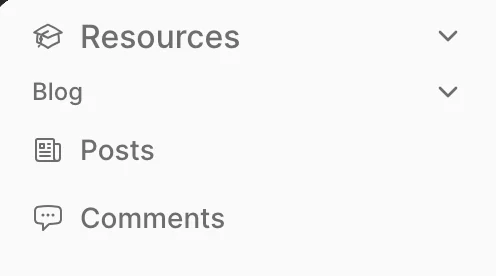
Default collapsed state
You can set a default collapsed state using the collapsed option. This only takes effect the first time a user visits — once they have a stored preference, that preference takes priority.
section "Resources", icon: "heroicons/outline/academic-cap", collapsable: true, collapsed: true do
  group "Blog", collapsable: true, collapsed: true do
    resource :posts
    resource :comments
  end
end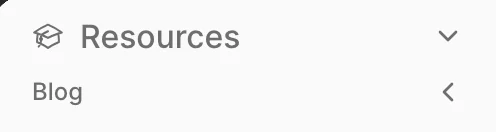
Profile menu
The profile menu allows you to add items to the menu displayed in the profile component. The sign-out link is automatically added for you.
Only link_to items are rendered here; other item types are ignored.
# config/initializers/avo.rb
Avo.configure do |config|
  config.profile_menu = -> {
    link_to "Profile", path: "/profile", icon: "user-circle"
  }
end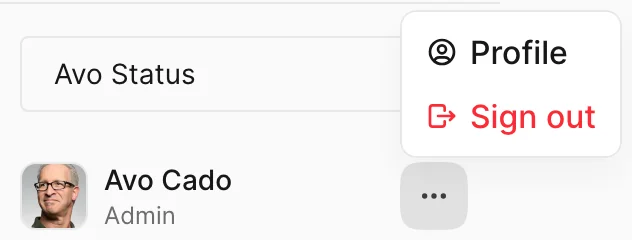
Forms in the profile menu
It's common to have links that POST to a path, like signing out a user. For this scenario the profile menu's link_to supports the method and params options, so if you have a custom sign-out path you can do things like this:
# config/initializers/avo.rb
Avo.configure do |config|
  config.profile_menu = -> {
    link_to "Sign out", path: main_app.destroy_user_session_path, icon: "user-circle", method: :post, params: { custom_param: :here }
  }
end
Custom content in the profile menu
You might, however, want to add a very custom form or more items to the profile menu. For that we prepared the _profile_menu_extra.html.erb partial for you.
bin/rails generate avo:eject --partial :profile_menu_extraThis will eject the partial and you can add whatever custom content you might need.
<%# app/views/avo/partials/_profile_menu_extra.html.erb %>
<%# Example link below %>
<%#= render Avo::ProfileItemComponent.new label: 'Profile', path: '/profile', icon: 'user-circle' %>
Header menu
The header menu is the row of links rendered in Avo's top navigation bar. By default it shows a single link to your app_name; setting header_menu replaces that with your own links — typically documentation, status, billing, or other external destinations. Links that don't fit collapse into a "more" dropdown automatically.
The DSL is flat — only link_to items render.
# config/initializers/avo.rb
Avo.configure do |config|
  config.header_menu = -> {
    link_to "Docs", path: "https://docs.avohq.io", target: :_blank
    link_to "Drafts", path: avo.resources_posts_path, params: { status: "draft" }
    link_to "Sign out", path: main_app.destroy_user_session_path, method: :delete
  }
end
Header links support the same link_to options as everywhere else — including method, params, and title for a hover tooltip — plus the visible block for conditional links.