
Customization options
Avo's initializer exposes a set of app-wide settings that don't belong to any single feature — the app name, timezone, index view behavior, layout widths, logging, and more. They all live in config/initializers/avo.rb.
# config/initializers/avo.rb
Avo.configure do |config|
  config.app_name = "Avocadelicious"
  config.timezone = "UTC"
  config.currency = "USD"
  config.per_page = 24
end
With no configuration at all, Avo computes the app name from your Rails app, uses UTC and USD, shows 24 records per page in constrained-width tables, and redirects the logo to your first resource. Every default is listed in the Customization API, and options that belong to a specific feature (appearance, menus, authentication, search…) are indexed there too.
Change the app name
On the main navbar next to the logo, Avo generates a link to the homepage of your app. The label is usually computed from your Rails app name, and you can customize it with app_name.
# config/initializers/avo.rb
Avo.configure do |config|
  config.app_name = "Avocadelicious"
end
If you need something dynamic — an I18n.t lookup, for example — pass a block instead:
Avo.configure do |config|
  config.app_name = -> { I18n.t "app_name" }
end
To replace that single link with a list of links (docs, support, etc.), see Header menu.
Timezone and currency
If your app displays date, datetime, or currency fields, set the global timezone and currency they should use.
# config/initializers/avo.rb
Avo.configure do |config|
  config.timezone = "UTC"
  config.currency = "USD"
end
By default Avo follows each visitor's own time zone via use_browser_timezone: it detects the browser's time zone, stores it in a cookie, and renders all server-side dates and times in it — announcing the switch with an alert the first time. Set it to false to render everyone in the configured zone above.
# config/initializers/avo.rb
Avo.configure do |config|
  config.use_browser_timezone = false
end
Resource Index view
There are a few customization options to change how resources are displayed in the Index view.
Per-page pagination
Set the default page size with per_page and the options in the per-page picker with per_page_steps.
# config/initializers/avo.rb
Avo.configure do |config|
  config.per_page = 4
  config.per_page_steps = [4, 12, 24, 48]
endFor has_many associations, control how many records are visible in their Index view with via_per_page.
For the pagination engine itself — countless mode, page size behavior — set global defaults with pagination, which takes the same keys as the per-resource self.pagination option.
Default view type
The ResourceIndex component supports the :table (default), :grid, and :map view types, plus any custom view type you register. Change the default for all resources with default_view_type, or per resource with the default_view_type class attribute. Read more on the views pages.
# config/initializers/avo.rb
Avo.configure do |config|
  config.default_view_type = :grid
endSorting direction
The first time a user sorts a column, Avo sorts it descending. Flip that with first_sorting_option.
# config/initializers/avo.rb
Avo.configure do |config|
  config.first_sorting_option = :asc
end
Row density
Control how much vertical space rows take up in tables and dashboard list cards with density — :tight, :normal (default), or :relaxed. Dashboard table and list cards can override it per card.
# config/initializers/avo.rb
Avo.configure do |config|
  config.density = :tight
end
Click a row to view the record
By default, clicking anywhere on a row navigates to that record's Show view. If you'd rather reserve navigation for the explicit controls, disable click_row_to_view_record.
# config/initializers/avo.rb
Avo.configure do |config|
  config.click_row_to_view_record = false
endWARNING
This interaction (clicking a tr element to behave as a link) is not natively supported in HTML. Avo enhances it with JavaScript, which may lead to side effects. Please report any issues you encounter on our issue queue.
Cache resources on the Index view
Avo caches each resource row (or grid item) for performance reasons. Disable that with cache_resources_on_index_view.
# config/initializers/avo.rb
Avo.configure do |config|
  config.cache_resources_on_index_view = false
end
INFO
If you use the visibility option to show/hide fields based on the user's role, you should disable this setting.
Search debounce
Avo waits 300 milliseconds after the user stops typing before firing a search request. Tune that with search_debounce.
Modify controls placement and appearance
Configure where row controls appear on the Index view — placement, floating behavior, and hover visibility — using row_controls_config.
See row controls configuration on table view.
ID links to resource
On the Index view, each row has the controls component at the end, which allows the user to go to the Show and Edit views and delete that entry. If you have a long row and a not-so-wide display, it might not be easy to scroll to the right-most section to click the Show link.
Enable id_links_to_resource to render all id fields on the Index view as links to their resource.
# config/initializers/avo.rb
Avo.configure do |config|
  config.id_links_to_resource = true
end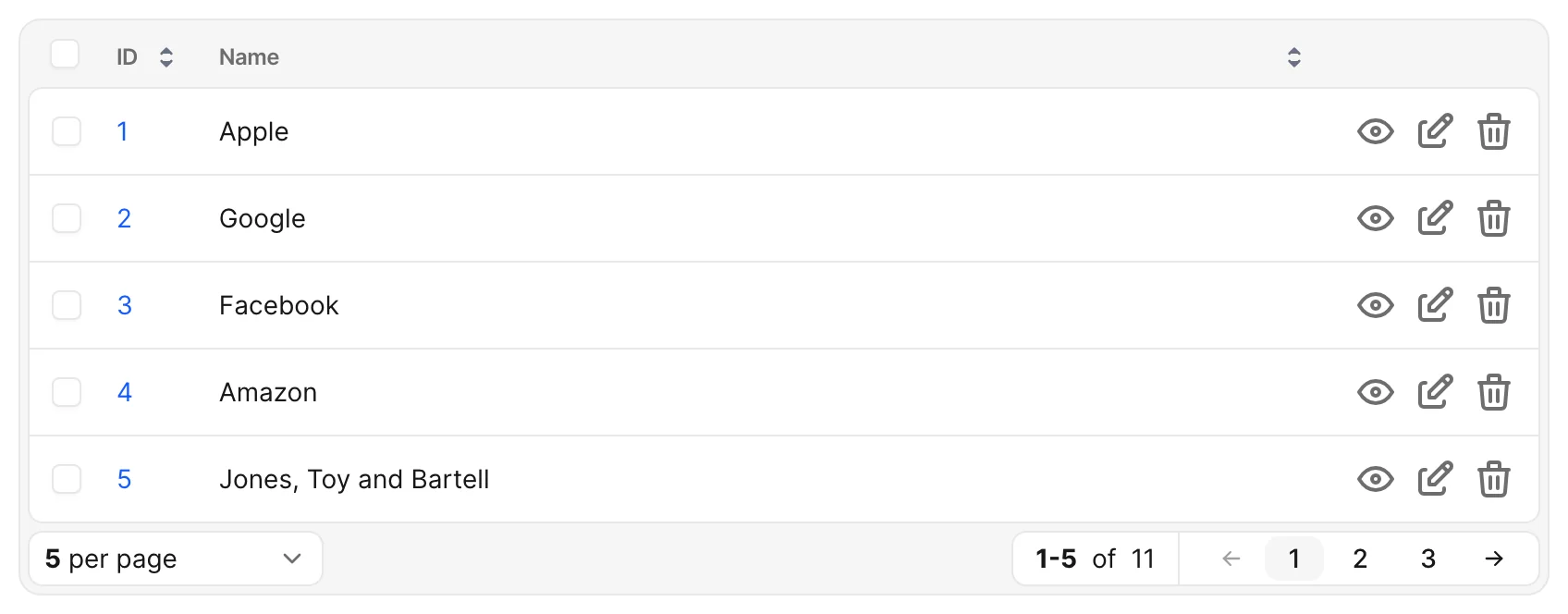
Container width
Control how wide Avo's main content area is with container_width. The default keeps index views in a large constrained container and show/form views in a narrower one.
# config/initializers/avo.rb
Avo.configure do |config|
  # Apply one width to all views
  config.container_width = :full

  # Or target specific views with a hash
  config.container_width = { index: :full }
end
Widths are :large, :small, or :full. The hash form accepts individual view keys (:index, :show, :new, :edit, :create, :update) and the group aliases :forms, :display, and :single — specific keys win over aliases. See the reference for the full tables.
# All single-record views full-width; index stays large
config.container_width = { single: :full }

# Mix: single full-width, but show overridden back to small
config.container_width = { single: :full, show: :small }
Upgrading from full_width_container / full_width_index_view
| Old | New |
|---|---|
config.full_width_container = true | config.container_width = :full |
config.full_width_container = false | Remove the line (default is correct) |
config.full_width_index_view = true | config.container_width = { index: :full } |
Toggle the sidebar button visibility
By default, Avo displays a toggle button in the navbar that allows users to collapse and expand the sidebar on desktop. Hide it with sidebar[:toggle_visible] — the sidebar then stays permanently open on desktop. On mobile, the sidebar toggle is always visible regardless of this setting.
# config/initializers/avo.rb
Avo.configure do |config|
  config.sidebar = {toggle_visible: false}
end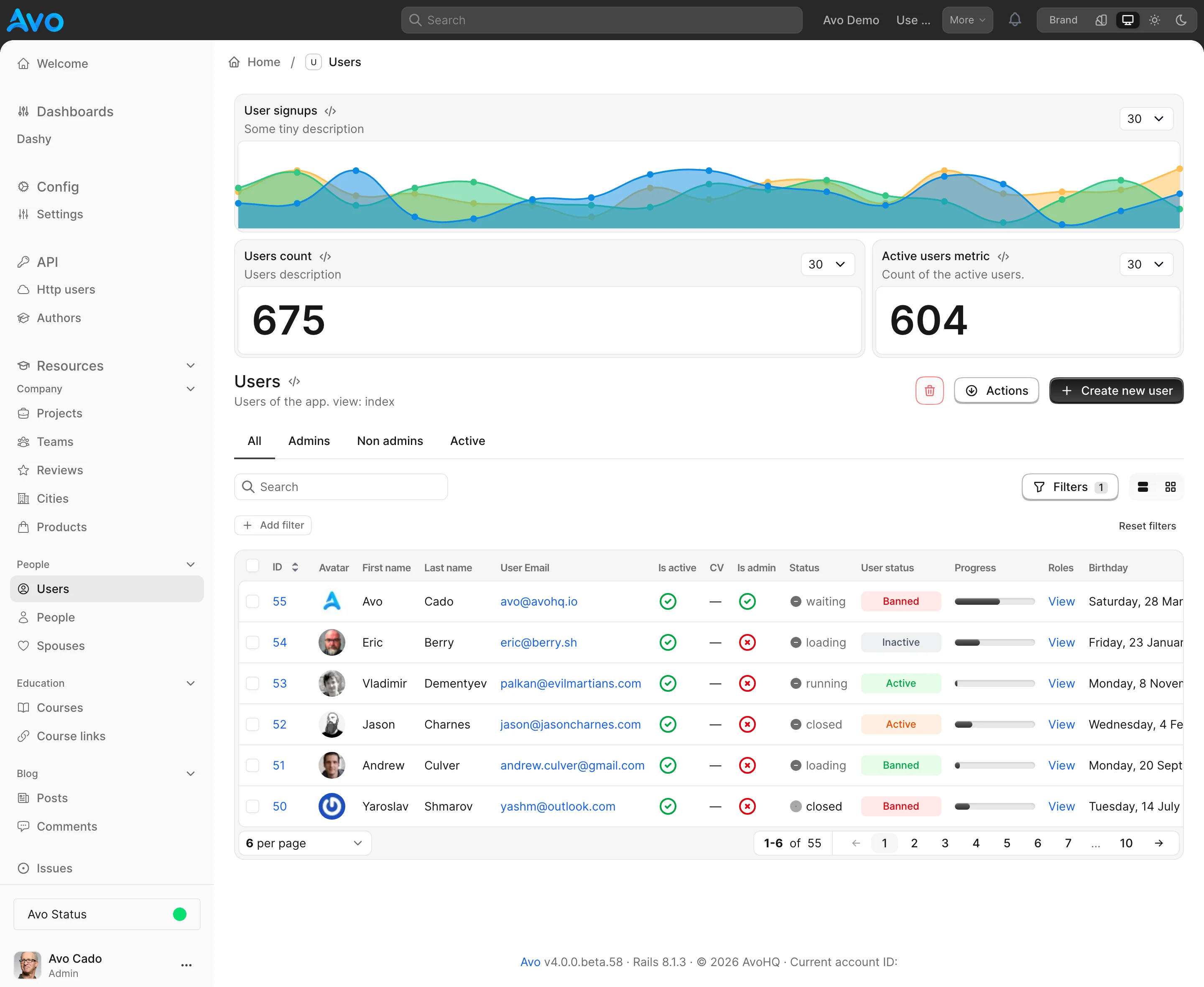
Resizable sidebar
On desktop, the boundary between the sidebar and the content is a drag handle. Users drag it to whatever width suits their navigation labels, and the choice sticks across pages and browser restarts.
The handle is deliberately quiet: at rest there is nothing new to see — the divider is the same one Avo has always drawn — and the affordance announces itself through the col-resize cursor when the pointer crosses the boundary. A grip appears on hover and while dragging. Double-clicking the handle resets the sidebar to its starting width, and pressing Escape mid-drag cancels the drag and reverts to the width it started from.
Widths are clamped to 200px–480px, and never wider than 40% of the viewport, so the content area cannot be squeezed out on a narrower screen. If a user picks 480px on a wide monitor and later opens the same admin on a 1100px window, the sidebar renders narrower to fit and returns to 480px when there is room again — the stored preference is not overwritten.
Sidebar labels no longer wrap: a link, section, or group name that overflows renders on a single line with an ellipsis, and the full label is available in a tooltip on hover. This applies at every width, so even the 200px minimum stays tidy.
The chosen width is stored in a cookie and applied before the first paint, so there is no flash of the default width on load.
Scope of the preference
The width is stored per browser, not per user — two people sharing a browser profile share a width, the same as Avo's theme and per-page preferences. It does not sync across devices.
Resizing is desktop-only. Below the lg breakpoint (1024px) the sidebar is a full-height overlay, so there is no handle and no resizing — the sidebar uses its default width there regardless of what was chosen on desktop. The handle is also hidden on touch devices and anywhere without a precise pointer.
Change the starting width
Set sidebar[:default_width] to change where the sidebar starts before a user drags it — useful when your resource names are consistently long.
# config/initializers/avo.rb
Avo.configure do |config|
  config.sidebar = {default_width: 320}
end
The value is in pixels and is clamped to the same 200–480 range as dragging, so the handle can always drag back to it. It applies on desktop only; below lg the sidebar keeps its 256px default so a wide value cannot cover a small screen. A user who has dragged the sidebar keeps their own width — their preference wins over this setting.
Turn resizing off
Set sidebar[:resizable] to false to remove the handle entirely. The sidebar then stays at its configured width and behaves exactly as it did before.
# config/initializers/avo.rb
Avo.configure do |config|
  config.sidebar = {resizable: false}
end
Accessibility
Resizing is a drag-only gesture, which does not satisfy WCAG 2.2 SC 2.5.7 (Dragging Movements). If you are working to an AA conformance claim or a VPAT, use this option to opt out.
Without JavaScript
The stored width is applied by a small nonce'd script in <head>, so with JavaScript disabled the sidebar renders at its default width and no handle appears.
Body classes
Add custom CSS classes to Avo's <body> tag with body_classes — useful for applying global styles, theme variations, or targeting specific layouts with CSS.
# config/initializers/avo.rb
Avo.configure do |config|
  config.body_classes = "custom-theme compact-layout"
end
It also accepts an array, or a block for dynamic classes. The block is evaluated with Avo's ExecutionContext, so you have access to current_user, request, params, and other context methods.
Avo.configure do |config|
  config.body_classes = -> {
    classes = []
    classes << "admin-mode" if current_user&.admin?
    classes << "dark-preference" if request.cookies["theme"] == "dark"
    classes
  }
end
Hide the layout when printing
If your users print record pages, enable hide_layout_when_printing to hide the sidebar, navbar, and footer on the printed page, leaving only the content.
# config/initializers/avo.rb
Avo.configure do |config|
  config.hide_layout_when_printing = true
end
Send the user back to the top
Long index tables and record pages leave the user far from the navbar. Avo renders a "Back to top" pill centered under the navbar that scrolls the page back up when clicked.
The pill shows up once the page is scrolled 400 pixels down and hides again near the top — the direction the user scrolls in doesn't change that. If you'd rather it appeared later, or not at all, configure back_to_top.
# config/initializers/avo.rb
Avo.configure do |config|
  config.back_to_top = {threshold: 1000}
end
To remove it, disable it. Any key you leave out of the hash keeps its default, so this is all you need:
# config/initializers/avo.rb
Avo.configure do |config|
  config.back_to_top = {enabled: false}
end
The label comes from the avo.back_to_top translation key, so you can rename it from your locale files. Read more on the localization page.
Home path
When a user clicks your logo inside Avo or goes to the /avo URL, they will be redirected to one of your resources. Point them somewhere else — a dashboard, for example — with home_path.
# config/initializers/avo.rb
Avo.configure do |config|
  config.home_path = "/avo/dashboard"
end
It also accepts a block, which has access to route helpers:
Avo.configure do |config|
  config.home_path = -> { avo_dashboards.dashboard_path(:dashy) }
end
When you configure home_path, the Get started sidebar item is hidden in the development environment.
You can pair it with the set_initial_breadcrumbs option for a more cohesive experience:
Avo.configure do |config|
  config.home_path = "/avo/dashboard"
  config.set_initial_breadcrumbs do
    add_breadcrumb "Dashboard", "/avo/dashboard"
  end
end
Skip show view
In the CRUD interface Avo adds the Show view by default: users see the view icon on rows and get redirected to the Show page after updating a record, running an action, and similar tasks.
If you don't use the Show view at all and prefer to go straight to Edit, set resource_default_view to :edit. Row links, redirects, and association links will all target the Edit view instead.
# config/initializers/avo.rb
Avo.configure do |config|
  config.resource_default_view = :edit
end
Renamed from skip_show_view
This option was previously named config.skip_show_view = true.
Open a record in your editor
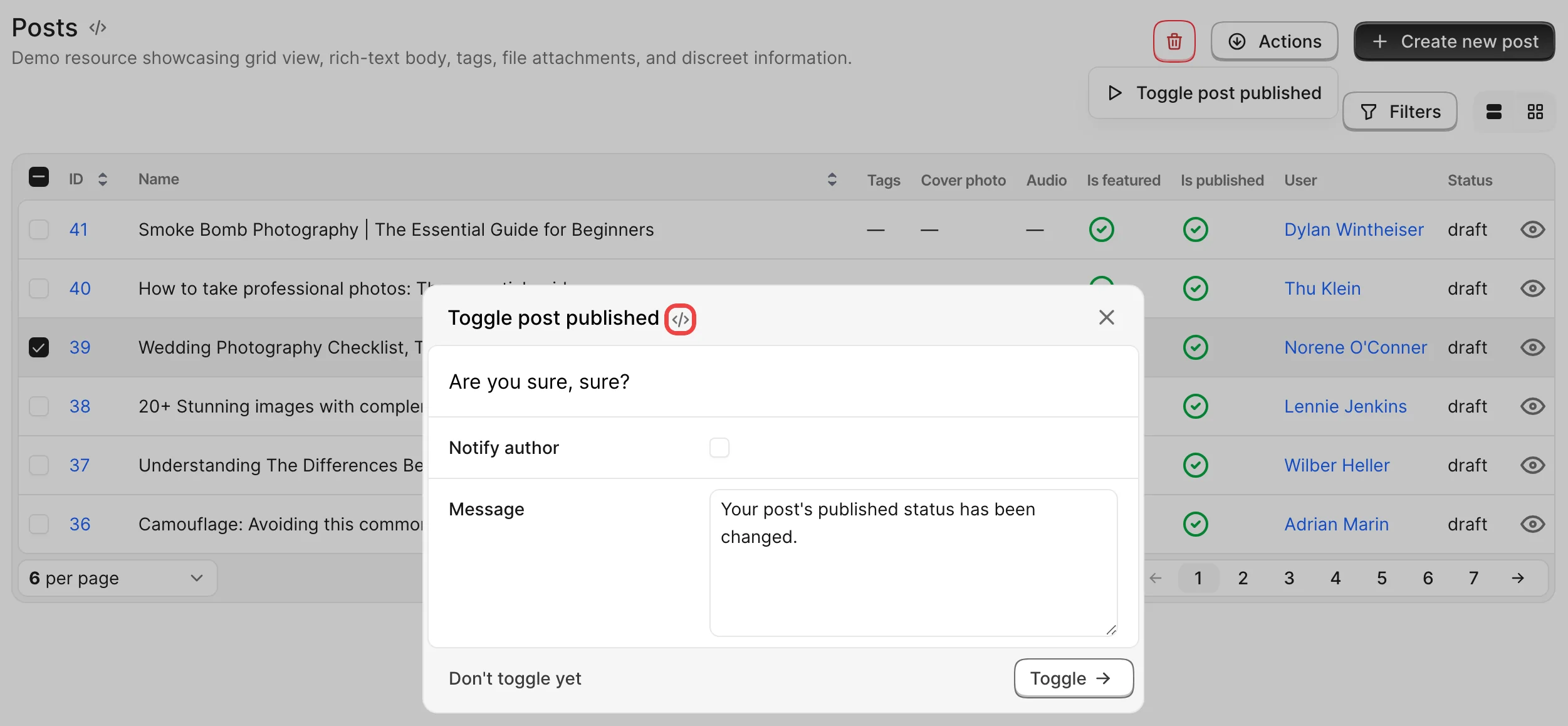
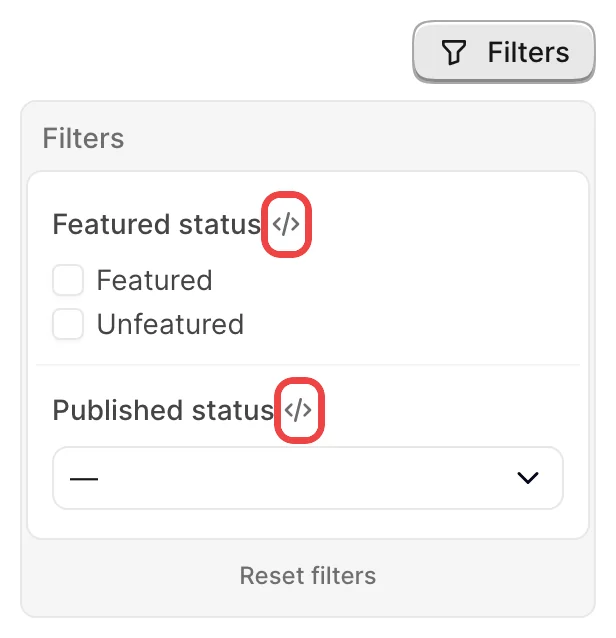
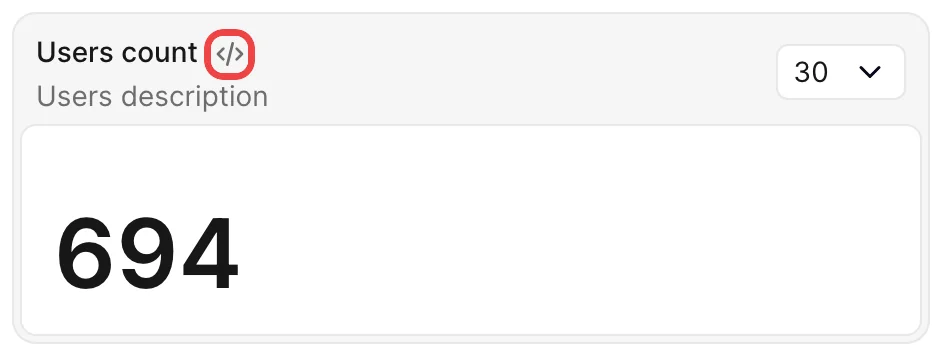
In the development environment, Avo renders a small </> icon next to the things you build with Avo — resources, actions, filters, dashboards, cards, and forms. Clicking it opens that class's source file directly in your editor, so you can jump from the UI to the code that powers it. The icon is only rendered in development and never shows up in other environments.
The link is built from default_editor_url, where %{path} is replaced with the absolute path of the source file.
# config/initializers/avo.rb
Avo.configure do |config|
  config.default_editor_url = "cursor://file/%{path}"
end
The default targets Cursor. To open files in a different editor, change the URL scheme, for example vscode://file/%{path} for VS Code or subl://open?url=file://%{path} for Sublime Text.
Resources
The resource header shows the icon next to the resource's name, linking to the resource file (e.g. app/avo/resources/project.rb).

Actions
When you run an action, the icon sits in the modal heading next to the action's name, linking to the action file.
Filters
Each filter in the filters panel shows the icon next to its name, linking to that filter's file.
Dashboards
The dashboard header shows the icon next to the dashboard's name, linking to the dashboard file.

Cards
Each card on a dashboard shows the icon next to its label, linking to that card's file.
Forms
If you use Avo Forms, the form header shows the icon next to the form's title, linking to the form file.

Context
In the Resource and Action classes, you have a global context object to which you can attach a custom payload. For example, you may add the current request params or any other arbitrary data.
Configure it with set_context in your initializer. The block is instance-evaluated in Avo::ApplicationController, so it has access to the _current_user method and the Current object.
# config/initializers/avo.rb
Avo.configure do |config|
  config.set_context do
    {
      foo: "bar",
      params: request.params,
    }
  end
end
_current_user
It's recommended you don't store your current user here but using the current_user_method config.
You can access the context data with the ::Avo::Current.context object.
Alerts
Alerts dismiss themselves after 5 seconds. Keep them on screen longer (or shorter) with alert_dismiss_time, in milliseconds.
# config/initializers/avo.rb
Avo.configure do |config|
  config.alert_dismiss_time = 8000
end
Persist UI state
By default, association pagination and static filter selections reset on every request. To retain them while the user's session is active, enable persistence with the :session driver.
# config/initializers/avo.rb
Avo.configure do |config|
  config.persistence = {
    driver: :session
  }
end
Cookie store size limit
Rails' default cookie session store is limited to 4096 bytes. Storing many pagination states and filter selections can exceed it and raise ActionDispatch::Cookies::CookieOverflow. Use a scalable session store such as Redis or MemCache instead.
Associations
Global defaults for associations live under the associations namespace. You only need to set the keys you want to change.
# config/initializers/avo.rb
Avo.configure do |config|
  config.associations = {
    lookup_list_limit: 1000,
    frames: {
      loading: :lazy,           # :lazy or :manual — default render mode for association frames
      auto_load_for: 15.minutes # manual memory window (0/nil to disable)
    }
  }
end
Lookup list limit
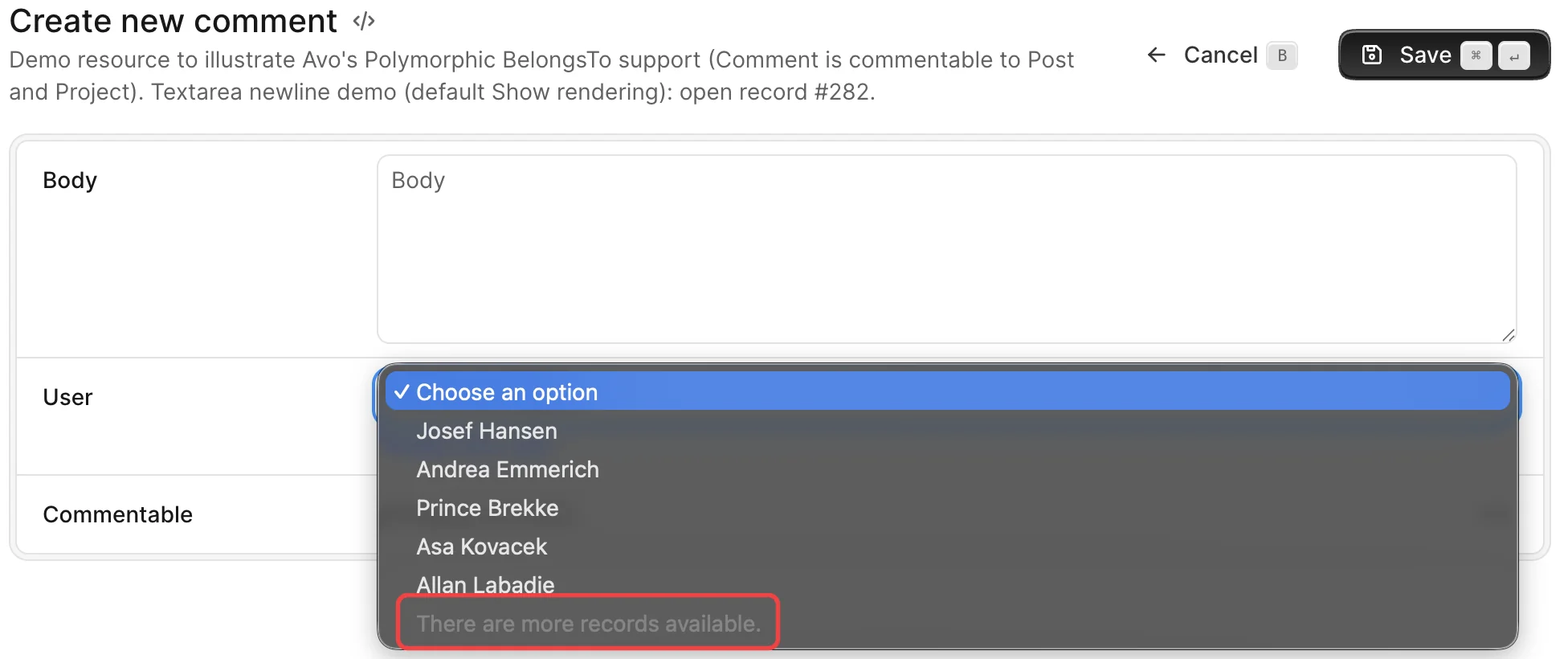
By default, there is a limit of 1000 records per query when listing the association options. This limit ensures that the page will not crash due to large collections. Use lookup_list_limit to change it.
The message There are more records available. is shown when the limit is reached. To localize the message you can use I18n.translate("avo.more_records_available").
Using searchable is recommended for listing unlimited records with better performance and user experience.
Association frames
The frames keys control how association turbo frames (has_one, has_many, has_and_belongs_to_many) load on the Show page when a field doesn't set its own loading: option — :lazy fetches the frame when it's revealed; :manual renders a placeholder with a Load button that stays loaded for the auto_load_for window. A per-field loading: always overrides these global defaults. See the reference for the full key table.
Turbo
Configure how Turbo behaves inside Avo — for example whether pages start loading on mousedown — with the turbo option.
# config/initializers/avo.rb
Avo.configure do |config|
  config.turbo = -> do
    {
      instant_click: true
    }
  end
end
Default URL options
To append params automatically to every path Avo generates — the mechanism behind route-level multitenancy — list them in default_url_options.
Avo.configure do |config|
  config.default_url_options = [:account_id]
endRails.application.routes.draw do
scope "/account/:account_id" do
mount_avo
end
endNow, when you visit https://example.org/account/adrian/avo, the account_id param is adrian and it will be appended to all path helpers.
Logger
Send Avo's logs to a different output stream by returning a logger from the logger proc.
# config/initializers/avo.rb
Avo.configure do |config|
  config.logger = -> {
    file_logger = ActiveSupport::Logger.new(Rails.root.join("log", "avo.log"))

    file_logger.datetime_format = "%Y-%m-%d %H:%M:%S"
    file_logger.formatter = proc do |severity, time, progname, msg|
      "[Avo] #{time}: #{msg}\n".tap do |i|
        puts i
      end
    end

    file_logger
  }
end
Status page
The status page (/avo_private/status) hides the license key by default. Control which items appear there with exclude_from_status — set it to [] to show everything, or add more items to hide them.
# config/initializers/avo.rb
Avo.configure do |config|
  config.exclude_from_status = ["license_key", "ip"]
end
Usage metadata
On the community tier, Avo sends usage metadata (fields count, resources count, and similar metrics) to Avo HQ to help the team understand how the framework is used. Opt out with send_metadata.
# config/initializers/avo.rb
Avo.configure do |config|
  config.send_metadata = false
end
Generators
Custom view_component path
You may not keep your view components under app/components and want the generated field view_components to be generated in your custom directory. Change it with view_component_path.
# config/initializers/avo.rb
Avo.configure do |config|
  config.view_component_path = "app/frontend/components"
end
Generate Avo resources alongside models
When you run rails generate model, Avo also generates the matching resource file. Opt out globally with model_generator_hook, or pass --skip-avo-resource to skip it for a single run.
# config/initializers/avo.rb
Avo.configure do |config|
  config.model_generator_hook = false
end
Page titles
This section has moved to the Custom pages page.
Mount Avo under a nested path
This section has moved to the Routing page.
Custom query scopes
This section has moved: see self.index_query and customize how records are fetched on the Resources pages.
Customize profile name, photo, and title
This section has moved to the Authentication page.
Eject
Breadcrumbs
This section has moved to the Breadcrumbs page.